
|
Common Vision Blox 15.1
|
|
|
Common Vision Blox 15.1
|
Common Vision Blox is grouped into three parts. The basic part is the Image Manager, which contains functionality for image and point-cloud acquisition and handling. The Image Manager also includes useful applications for camera configuration, image acquisition, and license management.
Basic image-processing operators are provided by the Foundation Package. The Image Manager is a subset of the Foundation Package; in other words, a Foundation Package license includes the complete functionality of the Image Manager.
Advanced image-processing tools and algorithms, such as 2D and 3D object recognition, are available in the CVB Tool libraries. These tools can be licensed individually, making it possible to select and pay for only the parts needed in an application. The CVB pattern-recognition tools include a visual training and testing frontend called TeachBench.
All tool libraries require the functionality of the Image Manager and must therefore be combined with an Image Manager or Foundation Package license. A CVB Tool license is bound to the Image Manager or Foundation Package license for which it was created and cannot be associated with a different one.
| Entities in CVB that can be licensed | ||
|---|---|---|
| Image Manager Libraries | Foundation Libraries | CVB Tool Libraries |
The following combinations of CVB licenses are available:
| Valid Combinations of Licensed Modules | ||||
|---|---|---|---|---|
| Image Manager | Foundation Package | Image Manager + CVB Tool(s) | Foundation Package + CVB Tool(s) | |
| Included content | Image Manager Libraries | Image Manager Libraries Foundation Libraries | Image Manager Libraries Selected Tool Library/ies | Image Manager Libraries Foundation Libraries Selected Tool Library/ies |
Each of the licenses mentioned earlier is available as a development license or as a runtime license. Development licenses entitle their holder to phone or email support; runtime licenses do not.
To simplify adherence to this, the following rules apply:
For more information or if you have additional questions, contact us through the STEMMER IMAGING contact page.
There are five options for enforcing the license model described earlier:
Any compliant GigE Vision or USB3 Vision camera is eligible for a license code that activates a CameraSuite license. CameraSuite Licensing enables the complete set of Image Manager features, but it cannot license the Foundation Package or advanced tools. The license requires the physical presence of the camera with which it is associated. Cameras from Automation Technology do not require an activation.
Embedded Licensing is included with the STEMMER IMAGING Modular Embedded Board and enables the Foundation Package libraries, which include the Image Manager libraries. Advanced tools can also be licensed with Embedded Licensing. The license is permanently bound to the board with which it is shipped. See Embedded Licensing for details.
USB Dongle Licensing is the most flexible and recommended licensing option. It enables the Image Manager libraries, Foundation Package libraries, and CVB Tool libraries. It can be moved freely between PCs, including embedded systems, and the license is permanently bound to the dongle.
Node Locked Licensing binds a license to the system hardware. Like the dongle, it enables the Image Manager libraries, Foundation Package libraries, and CVB Tool libraries. It is available only on Windows and Linux PCs. Reinstalling the system erases the license.
Trial Licensing is a special case of Node Locked licensing. It has the same capabilities and limitations but is restricted to 30 days, during which it unlocks all CVB tools. Trial licenses must not be used for production or development and can be requested through the License Manager.
The following table shows which license-enforcement method can be used with each part of CVB:
| Image Manager | Foundation Package | Image Manager + CVB Tool(s) | Foundation Package + CVB Tool(s) | |
|---|---|---|---|---|
| CameraSuite Licensing | x | |||
| Embedded Licensing | x | x | x | x |
| USB Dongle Licensing | x | x | x | x |
| Node Locked Licensing | x | x | x | x |
| 30-day Trial Licensing | x | x | x | x |
Regardless of the enforcement method, licensing can be managed through the LicenseManager application, which requires administrator privileges.
CVB uses WIBU CodeMeter dongles. Older CVB versions used SafeNet dongles with USB or parallel-port interfaces for license enforcement. These continue to work only with the 32-bit Windows build of CVB. SafeNet dongles are no longer supported starting with CVB 15.0.
SafeNet dongles can be exchanged for WIBU CodeMeter dongles for a fee. If you are interested, contact us through the STEMMER IMAGING contact page.
After purchasing a license, manage it with the LicenseManager application. Start LicenseManager.exe from the Start menu or from one of the following locations:
%CVB%Applications/opt/cvb/binThe LicenseManager requires administrator privileges. On Windows with User Account Control enabled, it requests them automatically. On Linux, start it with sudo.
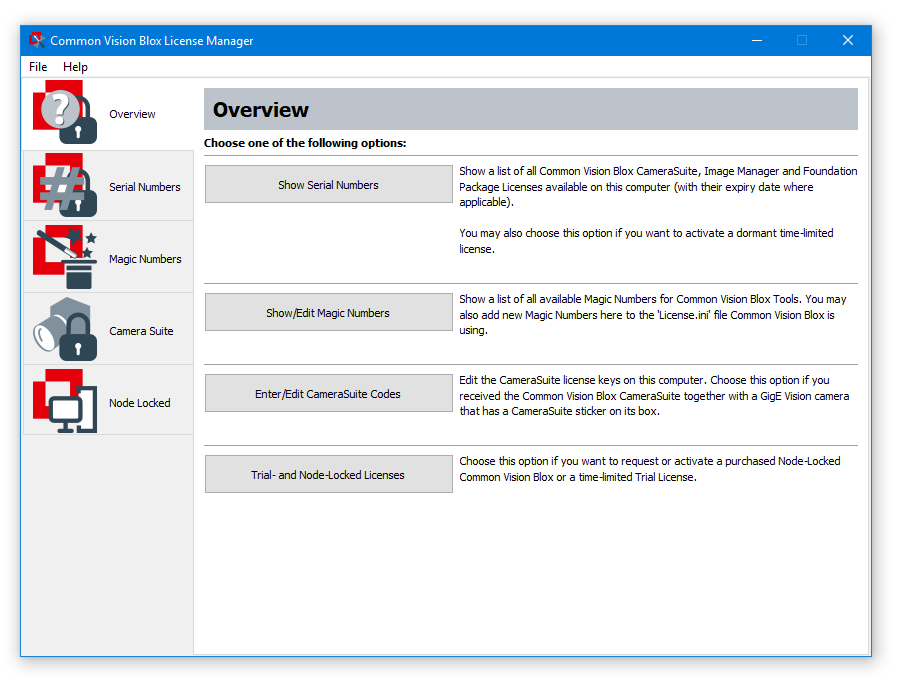
The Serial Numbers tab lists all Image Manager and Foundation Package licenses that have been activated on the system.
The CameraSuite tab of the LicenseManager lists all CameraSuite activation codes that have been added to the system.

For GigE Vision cameras, the icon shows a check mark when the camera is connected to the computer. For information about obtaining and deploying a CameraSuite code, see CameraSuite Licensing.
To add a CameraSuite activation code return to the License Manager:

If the code is valid, it is accepted and added to the list of licenses.
If the computer is connected to the internet and CameraSuite-enabled cameras are connected, the LicenseManager can query the online database for activation codes when it starts. Any code found for a connected camera that has not yet been added to the system is added automatically.
You can also use the CameraSuite deployment command-line tool.
If you have lost an activation code, see CameraSuite Licensing for information about retrieving it.
A guide to managing Embedded Licensing is available in Embedded Licensing.
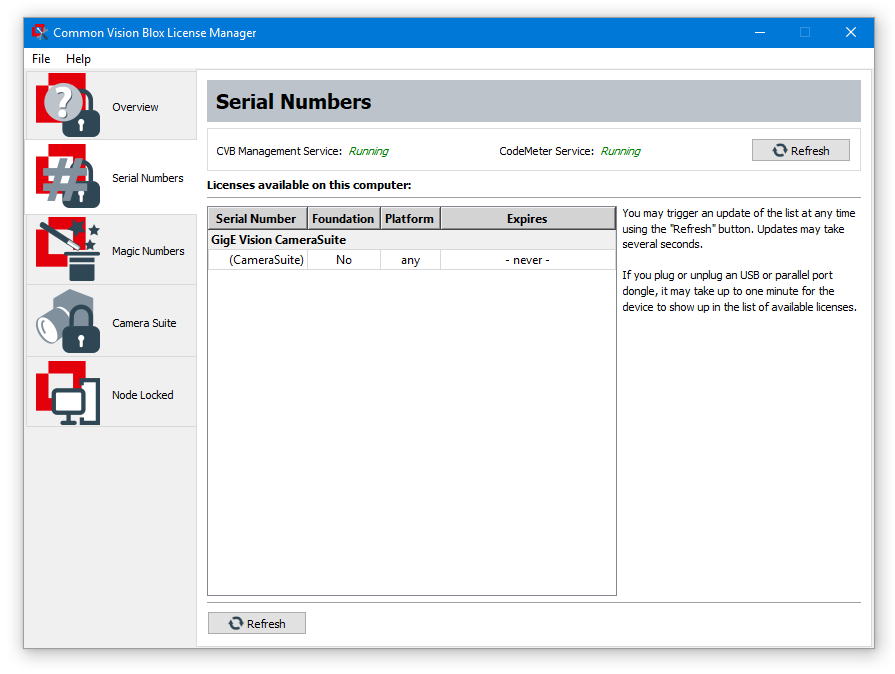
The USB dongle does not have to be activated; it is identified automatically. Check the Serial Numbers and Magic Numbers tabs to confirm that the dongle is detected. If it is not listed, contact STEMMER IMAGING support.
The serial number of your CVB license is engraved on the USB dongle in the form Y-XXXXXXX, where Y is the serial-number type and XXXXXXX is the seven-digit CVB serial number. The engraved QR code can also be used to read the complete serial number.
 CmStick CmStick |  CmStick/C CmStick/C |
The process for acquiring and activating a Node Locked or Trial license is the same.
1. Start the request. On the Node Locked page of the LicenseManager, select the appropriate button.

2. Provide the requested details. If you are requesting a regular Node Locked license, enter the order code of the product order to which the license refers. Please don't forget to tick the checkbox to agree to the transfer of personal data (can be badly visible on some systems)

*.WiBuCmRaC) to disk and email it to cvbli.nosp@m.cens.nosp@m.e@ste.nosp@m.mmer.nosp@m.-imag.nosp@m.ing..nosp@m.com. You will receive the license-activation data file (extension *.WiBuCmRaU), usually within the next few working days.Once you receive the activation data, return to the Node Locked page of the LicenseManager and select Enter License Activation to activate the license.
Orders for regular Node Locked licenses may no longer be cancelled after the license activation has been sent.
Node Locked and Trial licenses are bound to the hardware characteristics of the system on which they are activated. The request automatically selects these characteristics: BIOS, CPU, hard disk, and network card. The license remains intact as long as not too many characteristics change.
If you already have an Image Manager or Foundation Package license on which CVB Tools can be activated (see License Enforcement), you can add CVB Tool licenses individually. This can be done with the original order or later.
To order an additional CVB Tool license, contact us through the STEMMER IMAGING contact page. Provide the serial number of the Image Manager or Foundation Package license to which the CVB Tool license should be bound. You can find the serial number on the Serial Numbers tab of the LicenseManager.
Once the order is processed, you receive a Magic Number by email and in a .lic file. To activate it, open the Magic Numbers page in the LicenseManager and choose one of the following options:
.lic file. Select Import .lic File, then browse to the file you received.License.ini entry. Select New License.ini Entry, then enter the tool ID and Magic Number from the order confirmation.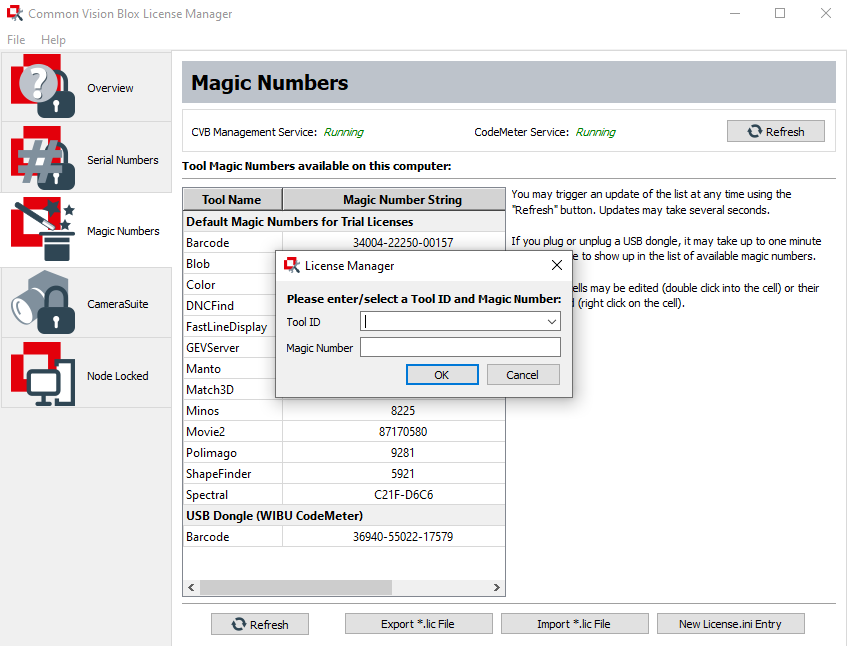
If you purchased an Image Manager or Foundation Package license on a USB dongle separately from your CVB Tool license, you can write the license to the existing USB dongle. This makes it easier to move the license to another computer.
The LicenseManager contains a hidden dialog for this purpose. To enable it:
HKEY_LOCAL_MACHINE\SOFTWARE\Common Vision Blox\Image Manager:Show License ConfigurationREG_DWORD0x00000001 (1)On the Configuration tab, select the dongle to which you want to write from the drop-down list. To avoid confusion, connect only one dongle. Select Edit... and choose the Magic Numbers to write to the dongle. Only eligible Magic Numbers are displayed, so the list is likely to be much shorter than the list on the Magic Numbers tab.

See CVB DLL License Requirements for a list of all Common Vision Blox DLLs and their required licenses.